
Full-service restaurant setup
A settings recipe for restaurants: open bills, waiters, required tables, QR with staff confirmation, KDS + printer, service charge, pay at the table, and split bills.
On this page
This guide is for restaurants where guests sit down first, order from a waiter or through the QR code on the table, add to their order several times, and pay at the end. There’s usually a separate kitchen and bar, a service charge, and groups who want to pay separately.
Full-service restaurant
Open bills, waiters, kitchen by station.
Flow
- 1Sit & orderGuest
- 2Confirm the first QR orderWaiter
- 3Kitchen & bar by stationKitchen
- 4Ready to serveSystem
- 5Ask for the bill & payGuest
Modules
Sample menu
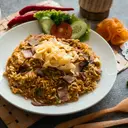
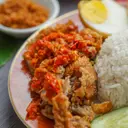
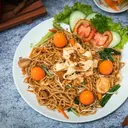

Devices
1 cashier tablet + 2 waiter phones + 1 KDS tablet + receipt & kitchen printers
Recommended settings#
Choose the Full-service restaurant business type in the setup wizard and most of these settings are filled in for you.
| Setting | Value | Where |
|---|---|---|
| Payment timing | Pay later (open bill) | Settings › Order flow |
| Table for dine-in | Table required | Settings › Order flow |
| Order sources | Cashier, Waiter, Guest QR | Settings › Order flow |
| QR orders reach the kitchen | Staff confirms first order | Settings › Guest QR ordering |
| Where guests pay | At the cashier, Staff comes to the table, Guest pays on their phone | Settings › Order flow |
| How staff collect at the table | QRIS on staff phone, EDC brought to the table, QR on the pre-bill | Settings › Payment flow |
| Service charge | 5% for Dine-in | Settings › Tax & charges |
| Kitchen tickets | Printer + KDS | Settings › Receipts & printing |
Modules: Core POS, Tables & QR ordering, Waiter, Kitchen (KDS & kitchen printer), Pay-at-Table.
Setup steps#
1. Order and payment flow#
- Open Order flow. Go to Back OfficeSettingsOrder flow.
- Tick all three order sources: Cashier, Waiter, and Guest QR.
- Choose the “Eat first, pay later” payment flow. Orders go straight to the kitchen, and guests pay after eating, at the cashier, to a waiter at the table, or via QR.
- Set tables to “Table required”. Takeaway still doesn’t need a table; takeaway orders use a queue number.
- Choose where cash collected by waiters goes. Pick Main cashier’s shift so all the money is recorded in one cash drawer. It’s the easiest to reconcile.
- Save changes.
order.payment_timingpay_laterorder.table_moderequiredpayment.waiter_shift_ownermain_cashier2. Tables and QR#
- Create areas and tables. In Back OfficeTables & QR, create the areas Indoor, Smoking, and 2nd floor. Use Add tables in bulk to create T01–T20 in one go, and fill in the seat count.
- Set up QR protection. In Back OfficeSettingsGuest QR ordering, choose Staff confirms first order. For very busy restaurants, choose Staff opens the table first: the QR code only becomes active after a waiter opens the table.
- Print the QR codes. Go back to Tables & QR, tap Print all QR (A4, 3 columns), and stick one on each table.
qr.order_approvalstaff_confirm_first3. Kitchen, bar, KDS, and printers#
- Create stations. In Back OfficeKitchen stations, set up Kitchen, Bar, and, if needed, Pastry.
- Route categories. Tick Mains and Appetizers for the Kitchen, Drinks for the Bar, and Desserts for Pastry. You can send specific items elsewhere with Extra items (for example, Es Teh from the Set Meals category to the Bar).
- Set up the KDS tablet. Pair the kitchen tablet as an Outlet device in KDS mode and choose the Kitchen station. See Cashier, waiter & KDS modes.
- Choose each station’s output. Kitchen: Printer + KDS. Bar: Printer. Also set Mark late after (for example, 15 minutes) so tickets change color on the KDS.
kitchen.modeboth4. Tax and service charge#
- Open Tax & charges. Back OfficeSettingsTax & charges.
- Enter 10% PBJT (Indonesia’s regional restaurant tax, formerly PB1) and choose whether menu prices already include tax.
- Enter a 5% service charge and tick only the Dine-in channel under Applies to channels.
- Tax is calculated on subtotal + service. Leave this on if it matches your city’s regional regulation. Check the receipt preview.
5. Pay at the table#
- Turn on table collection modes. In Back OfficeSettingsPayment flow, tick QRIS on staff phone, EDC brought to the table, and QR on the pre-bill.
- Add EDC methods. In Back OfficeSettingsPayment methods, add, for example, EDC BCA and EDC Mandiri.
- Connect a payment gateway for dynamic QRIS and guest self-payment. See Payment gateways.
Full details are in Pay at the table.
6. Staff and devices#
| Device | Mode | Used for |
|---|---|---|
| Cashier iPad | Cashier | Bills, payments, shifts & cash |
| Waiter phones 1–2 | Waiter | Taking orders, collecting payment at the table |
| Kitchen KDS tablet | KDS (Kitchen) | Kitchen ticket queue |
| Waiters’ own phones | Waiter (Staff personal phone) | Not counted toward the device quota |
Recommended roles: Waiter for waitstaff, Cashier at the cashier counter, Supervisor for captains who approve voids and discounts, and Kitchen for KDS staff. Waiters on their own phones request approval through remote approval.
Example: a busy rush#
Saturday night, 19:30.
- A group of four sits at T07. Waiter Andi taps table T07 on his phone, chooses Open table, enters 4 guests, then takes down 2 Nasi Goreng Kampung, 1 Iga Bakar, and 4 Es Teh Manis. He taps Send to kitchen.
- The food ticket appears on the Kitchen KDS, and the iced teas print on the Bar printer. The timer starts.
- Ten minutes later, one of the guests scans the QR code on the table and adds Pisang Goreng Keju. Since this isn’t the first round, the order goes straight to the kitchen and joins the T07 bill.
- Table T12 has just arrived and orders via QR. The cashier and waiter see New QR order · T12 with a Confirm button.
- The kitchen marks the Iga Bakar Ready. Andi’s phone buzzes: Order ready to serve · T07.
- The T07 guests tap Ask for the bill on their phones. Two of them pay their own share from their phones (picking the dishes they ate), and Andi collects the rest at the table by EDC. The bill is paid in full, and the table status changes to Needs cleaning.
Tips and common mistakes#
Related guides#
Was this guide helpful?
Thanks! Glad it helped.
Thanks for the feedback. Want us to help you directly?
Ask on WhatsApp