
Quick service & fast food setup
A settings recipe for QSR: pay first, automatic queue numbers, no tables, and a kitchen that cooks from the KDS screen.
On this page
This guide is for quick-service businesses: fried chicken, burgers, rice bowls, kebabs, or drink shops with long lines at lunchtime. The keys are a cashier checkout that’s as fast as possible, a kitchen that knows the order sequence, and guests who get called by number.
Quick service / fast food
Fast queue, pay first, number called.
Flow
- 1Order & payGuest
- 2Queue numberSystem
- 3Cook from the KDSKitchen
- 4Call the numberCashier
Modules
Sample menu
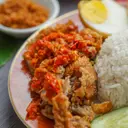


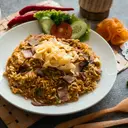
Devices
1–2 cashier tablets + 1 KDS tablet + receipt printer
Recommended settings#
Choose the Quick service (QSR) business type in the setup wizard.
| Setting | Value | Where |
|---|---|---|
| Payment timing | Pay first | Settings › Order flow |
| Table for dine-in | No tables (free seating) | Settings › Order flow |
| Orders without a table are called by | Queue number | Settings › Order flow |
| Order sources | Cashier, Guest QR | Settings › Order flow |
| QR orders reach the kitchen | Straight to kitchen | Settings › Guest QR ordering |
| QR orders must be paid before cooking | Yes | Settings › Order flow |
| Kitchen tickets | Kitchen display (KDS) | Settings › Receipts & printing |
| Rounding | Rp100 or Rp500, cash only | Settings › Tax & charges |
Setup steps#
1. Order flow#
- Open Order flow. Back OfficeSettingsOrder flow.
- Choose “Pay first”. Orders only go to the kitchen once they’re paid in full.
- Set the table option to “No tables (free seating)”. The cashier never has to pick a table.
- Choose “Queue number”. Numbers are generated automatically each day, printed on the receipt, and shown on the KDS ticket.
- Save changes.
order.table_modenoneorder.service_identifierqueue_number2. A menu that’s fast to tap#
- Order categories by what sells. In Back OfficeMenu & pricingCategories, the order there = the order shown in the cashier app. Put Combos and Best seller at the top.
- Avoid required modifiers you don’t need. Items with no required choices go straight into the cart with one tap. Use required modifiers only when a choice really has to be made, for example Chicken Choice (Breast/Thigh).
- Add the Best seller tag. Tags show up as labels on the QR menu.
3. Kitchen KDS#
- Make sure the stations exist. In Back OfficeKitchen stations, check the Kitchen station (created automatically) and add a Drinks station if you need one.
- Set the output to “KDS” for each station and fill in Mark late after, for example 8 minutes.
- Set up the KDS tablet. Pair a tablet in the kitchen as an outlet device in KDS mode, then select its station. See Pair a tablet.
- Route categories. Check every category against the right station until no item is left without a station.
kitchen.modekds4. Rounding and payment methods#
- Set up rounding. In Back OfficeSettingsTax & charges, set Round to Rp100 or Rp500, direction Nearest, applied to Cash only. Giving change gets easier.
- Order the payment buttons. In Back OfficeSettingsPayment methods, the order there = the button order on the payment screen. Put Cash and QRIS at the top.
5. QR for the queue (optional)#
Guests can scan a QR at the counter, order, and pay by QRIS from their phone while they wait. Turn on One QR for the whole outlet in Back OfficeSettingsGuest QR ordering and print the single QR from the Tables & QR page. Paying from a phone requires a payment gateway.
6. Staff and devices#
- 1–2 Cashier tablets at the counter. Add a second cashier during busy hours.
- 1 KDS tablet per kitchen station.
- Shift mode Per cashier if each cashier has their own cash drawer; Per device / drawer if cashiers take turns on one drawer.
Example: a lunch rush#
It’s 12:05 and the line is out the door.
- The cashier taps the Ayam Geprek + Es Teh combo twice and one Rice Bowl Teriyaki, then taps Pay.
- The Rp86,900 total is rounded to Rp87,000 because the guest pays cash. The cashier taps the Rp100,000 quick-cash button, and Rp13,000 change appears.
- The receipt prints with Queue 047. The ticket shows up on the Kitchen KDS right away.
- Three other guests scan the QR at the counter, pay by QRIS on their phones, and get numbers 048–050. Their tickets land on the KDS once payment goes through.
- The kitchen taps Ready on ticket 047. The cashier calls out “Number 47!”. On the QR guests’ phones, the status changes to Ready for pickup.
Tips and common mistakes#
Checklist before opening#
- The Combos category and best-selling items are at the top.
- Required modifiers are used only when truly needed.
- Every category is routed to a station, and each KDS tablet has the right station selected.
- Mark late after is set to match your target serving time.
- Cash rounding is on, and the opening cash float has plenty of small notes.
- The single QR at the counter is printed, if guests can order from their phones.
Related guides#
Was this guide helpful?
Thanks! Glad it helped.
Thanks for the feedback. Want us to help you directly?
Ask on WhatsApp