Cloud kitchen & delivery setup
A settings recipe for delivery-only kitchens: multiple brands in one kitchen, GoFood/GrabFood/ShopeeFood channels, per-channel prices and commission, no tables.
On this page
This guide is for kitchens that don’t serve dine-in guests. Almost every order comes from a ride-hailing delivery app, often for several brands cooked in the same kitchen. What matters here: prices differ per app, the app’s order number is recorded for reconciliation, and the kitchen knows which brand each order is for.
Cloud kitchen & delivery
Many brands, one kitchen, prices per channel.
Flow
- 1Order arrives in the appGuest
- 2Enter per channelCashier
- 3Channel settlementSystem
- 4Cook by stationKitchen
- 5Hand off to the driverCashier
Modules
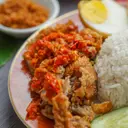
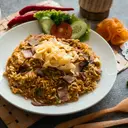
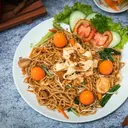
Sample menu
Devices
1 cashier tablet + 1 KDS tablet per kitchen + receipt printer
Recommended settings#
There’s no cloud kitchen-specific preset yet. Choose the Quick service (QSR) business type in the setup wizard, then adjust.
| Setting | Value | Where |
|---|---|---|
| Order sources | Cashier | Settings › Order flow |
| Payment timing | Pay first | Settings › Order flow |
| Table for dine-in | No tables | Settings › Order flow |
| QR ordering | Inactive | Settings › Guest QR ordering |
| Kitchen tickets | Kitchen display (KDS) or Printer + KDS | Settings › Receipts & printing |
| Channels & channel pricing module | Active | Settings › Modules |
Setup steps#
1. Turn on the Channels module#
- Open Modules. Back OfficeSettingsModules.
- Turn on “Channels & channel pricing”. A Channels menu appears in the sidebar.
- Turn off Tables & QR ordering, since there are no on-site guests.
2. Brands and menus#
- Create one brand per label. In Back OfficeOutlets & brandsBrands, for example Ayam Geprek Juara and Rice Bowl Kita.
- Assign every brand to the kitchen outlet. In Back OfficeOutlets & brandsOutlets, tick both under Brands served.
- Create a menu for each brand in Back OfficeMenu & pricing. The prices here are the base prices (brand prices).
3. Set up delivery channels#
- Open Channels. Back OfficeChannels. Built-in channels: Dine-in, Takeaway, QR, GoFood, GrabFood, ShopeeFood.
- Set GoFood prices. Tap the GoFood channel. Under Price rule, choose Mark up / down %, enter for example +20%, and set Round up to Rp500.
- Enter commission and payment method. Fill in Platform commission (for example 20%, used to estimate profit in reports) and choose “GoFood settlement” as the Default payment method.
- Require the order number. Turn on Require external order number so the cashier always enters the order ID from the app. Save.
- Repeat for GrabFood and ShopeeFood with their own percentages.
- Deactivate Dine-in and QR if you don’t use them.
The GoFood/GrabFood/ShopeeFood settlement methods are created in Back OfficeSettingsPayment methods with the Delivery channel settlement kind.
4. Custom prices per item#
Sometimes an item needs a different price from the percentage rule. Open Back OfficeMenu & pricingChannel prices and enter a Custom price in the column for the channel you want. Clear it to go back to following the channel rule. This is also where you can turn off Available for items you don’t sell on a particular app.
5. A station per brand#
- Create stations. In Back OfficeKitchen stations, for example Wajan Geprek and Rice Bowl.
- Route each brand’s categories to its station.
- Set up a KDS tablet for each station. Tickets show the channel (GoFood, GrabFood), so the team knows which orders a driver is waiting for.
kitchen.modekdsExample: a busy rush#
Friday night, three apps pinging one after another.
- A GoFood order GF-482193 comes in: 2 Ayam Geprek Level 3. On the P&P Cashier tablet, the cashier chooses Delivery, channel GoFood, enters “GF-482193” in App order no., then taps the items. Prices automatically use the GoFood channel price.
- GoFood settlement is already selected as the payment method. The cashier taps Pay and records the payment. The ticket appears on the Wajan Geprek KDS, labeled GoFood.
- A GrabFood order for a Rice Bowl Teriyaki comes in. Same process, and the ticket goes to the Rice Bowl KDS.
- The driver arrives, staff hand over the order and mark the ticket Done on the KDS.
- At the end of the month, open Back OfficeReports → By channel to see revenue and estimated commission for each app, then match it against By payment method when the settlement funds arrive.
Tips and common mistakes#
Checklist before opening#
- Every brand is ticked under Brands served for the kitchen outlet.
- The price rule, commission, and Default payment method are filled in for GoFood, GrabFood, and ShopeeFood.
- Prices in the delivery apps match the channel prices in P&P (spot-check a few items in Channel prices).
- Every category is routed to a station, and the “items have no station” list is empty.
- Each station’s KDS tablet is signed in and online.
- Cashier staff know how to choose Delivery and fill in App order no.
Reading profit per channel#
Say Ayam Geprek has a brand price of Rp20,000 and sells on GoFood for Rp24,000 (a 20% markup) with a 20% commission. The By channel report shows Rp24,000 in revenue and Rp4,800 in estimated commission per portion, so your net income is about Rp19,200, almost the same as the dine-in price. If the commission goes up, adjust the markup percentage on the Channels page.
Related guides#
Was this guide helpful?
Thanks! Glad it helped.
Thanks for the feedback. Want us to help you directly?
Ask on WhatsApp